How to Crop Images Without Losing Quality: The Complete Browser-Based Guide (2026)
Learn how to crop images without losing quality directly in your browser — no uploads, automatic EXIF removal, exact-pixel output, and one-click 2026 social media size presets.
Every time you upload a photo to a cloud-based editor just to trim the edges, two things happen behind the scenes: your image travels across a third-party server, and aggressive server-side compression quietly softens its sharpness. If you have ever wondered how to crop images without losing quality, the answer is not a fancier export preset — it is keeping the entire rendering pipeline inside your local browser.
Whether you are prepping high-resolution product shots for a marketplace, stripping location metadata before posting online, or trying to crop an image in your browser without uploading sensitive files to the cloud, client-side cropping eliminates both quality decay and privacy risk in one step.
This guide covers the mechanics of browser-local cropping, a real WebP vs. JPG re-encoding benchmark, a 2026 social media image sizes cheat sheet with one-click presets, and how to batch-crop a whole product catalog — all with the Photo2URL Image Cropper, which processes images locally in your browser, for free, with no account required.
Need to trim an image right now without server uploads? Process PNG, JPG, and WebP files locally with exact-pixel controls, one-click platform presets, and automatic EXIF removal. Open the Free Image Cropper →
Crop vs. Resize Image: Which One Do You Actually Need?
Before adjusting a single pixel, it helps to clarify a common point of confusion in image optimization: crop vs. resize image workflows serve completely different visual and technical goals.
| Operation | What changes | Best for |
|---|---|---|
| Crop | Removes pixels and changes the frame | Fixing composition, removing distractions, forcing a specific aspect ratio (e.g. 4:3 photo into a 16:9 banner) |
| Resize | Scales every pixel to new dimensions, frame unchanged | Shrinking a 4000 × 3000 photo to 1200 × 900 for faster page loads |
The practical difference is what happens to the pixels you keep. Cropping copies the remaining pixels 1:1 — nothing is stretched or interpolated, so the detail keeps the same density as the original. Resizing recomputes every pixel, which is why enlarging an image blurs it: the software must invent detail that was never captured.
A useful rule of thumb:
- Want to cut out unwanted borders, re-center a subject, or lock into a
1:1,4:5, or16:9frame? Crop. - Want to keep the full picture but change the overall width and height? Resize.
If you crop an image too tightly without checking a platform's minimum resolution, the platform will upscale it for you — causing exactly the pixelation you wanted to avoid. That is why the workflow in the next sections pairs cropping with exact output pixels, so the file you download is the size the platform expects.
Choose the right tool for your workflow:
- Want to trim borders or lock a frame? Open the Free Image Cropper →
- Need smaller dimensions while keeping the whole picture? Use the Image Resizer →
How Client-Side Canvas Cropping Protects Quality & Privacy
Traditional web editors rely on a round-trip server architecture: your browser uploads the raw file, a backend script runs ImageMagick or FFmpeg, and you download a re-compressed copy. That round trip introduces upload latency, storage exposure, and mandatory quality downgrades designed to save the host's bandwidth.
Modern client-side canvas image cropping flips that model using the native HTML5 <canvas> API directly on your device's CPU/GPU:
- Zero server uploads. Your file never leaves your machine's memory. Once the page is loaded, the cropper keeps working even if you disconnect your Wi-Fi — there is no server queue to wait on and no copy of your photo sitting on someone else's disk.
- Exact pixel precision. Instead of imprecise mouse dragging, you can crop an image to exact pixels — drag the crop box with its handles, or type width, height, and position directly as integers, such as
1200 × 630or1080 × 1080. - Automatic metadata stripping. Cameras and smartphones embed hidden EXIF headers — GPS coordinates, device serial numbers, timestamps. When the browser renders cropped pixels onto a fresh
<canvas>buffer and exports a new file, it inherently removes EXIF data when cropping, sanitizing the image for public sharing.
How to Crop an Image Without Losing Quality in 5 Steps
The whole workflow runs in one browser tab. No installation, no account, no upload progress bar.
Step 1: Load Your Image
Drag and drop a photo into the workspace, click to browse, or paste from your clipboard. The cropper accepts PNG, JPG/JPEG, and WebP up to 25 MB per image.
Step 2: Pick a Preset
Choose one of the aspect presets — Free, 1:1, 4:3, 3:2, 16:9, or 9:16 — or jump straight to a platform preset such as Open Graph 1200 × 630 or YouTube 1280 × 720, which also sets the exact output size for you (more on that below).
Step 3: Frame Your Crop
Drag the crop box by its center or its eight handles, with a live size readout beside the box. For surgical precision, edit the W / H / X / Y numeric inputs in pixels — they stay in sync with the box as you drag. Arrow keys nudge the box by 1 px, and Shift + arrow moves it by 10 px.
Step 4: Straighten Up (Optional)
Use the toolbar to rotate the image in 90° steps left or right, or flip it horizontally. The crop box is remapped to the new orientation instead of being reset, and a rule-of-thirds grid overlay helps you place the subject — the grid never appears in the export.
Step 5: Choose Output and Export
Leave the output on Original pixels to keep the cropped region at the source's native density, or switch to Exact pixels to scale the result to a precise width and height. Then pick the format — same as source, PNG, JPG, or WebP — and download, or host the result with Image to URL to get an instant CDN link.
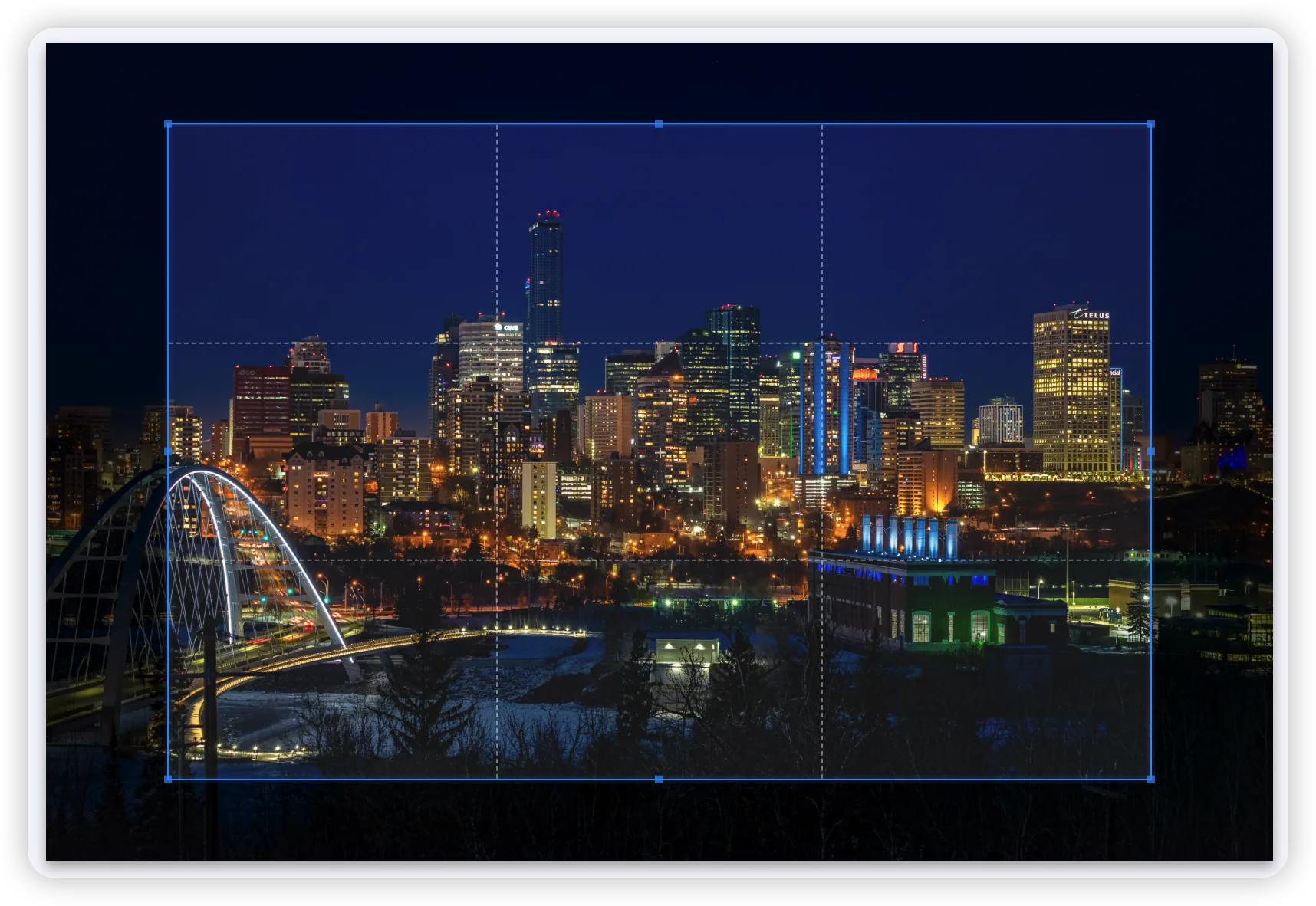
The crop workspace: presets, framing controls, and export all live on one page — and none of it requires an upload.
Hit Exact Platform Sizes With One-Click Presets
The most common quality failure happens after cropping: you export a slightly wrong size, the platform rescales it, and your "sharp" image comes out soft. The fix is to make the crop and the output size a single step.
The Image Cropper's platform presets do exactly that. Selecting one locks the aspect ratio and fills in the exact output dimensions, so the downloaded file already matches what the platform expects:
| Platform / use case | Preset | Output size | Ratio |
|---|---|---|---|
| Open Graph / link preview (Facebook, X, Slack) | Open Graph | 1200 × 630 px |
1.91:1 |
| LinkedIn link preview | 1200 × 627 px |
1.91:1 |
|
| YouTube thumbnail | YouTube | 1280 × 720 px |
16:9 |
| X / Twitter post | X post | 1600 × 900 px |
16:9 |
| Instagram Feed (square) | Instagram feed | 1080 × 1080 px |
1:1 |
| Instagram Feed (portrait) | Instagram portrait | 1080 × 1350 px |
4:5 |
| Instagram Story / TikTok | Instagram story | 1080 × 1920 px |
9:16 |
| E-commerce main image | Marketplace | 800 × 800 px |
1:1 |
| E-commerce zoom / HD image | Marketplace HD | 2048 × 2048 px |
1:1 |
Need a size that is not in the list, such as a 2560 × 1440 YouTube banner? Pick the matching aspect preset and enter the target under Exact pixels (any size from 1 to 8192 px per side).
One honest caveat: exact output is a scaling operation. If your crop region is smaller than the target, the result will be upscaled and quality may drop — the tool shows a warning in that case rather than silently degrading the image. Downscaling, by contrast, uses high-quality smoothing (with stepped halving for large reductions), so shrinking a big crop to platform size keeps edges crisp.
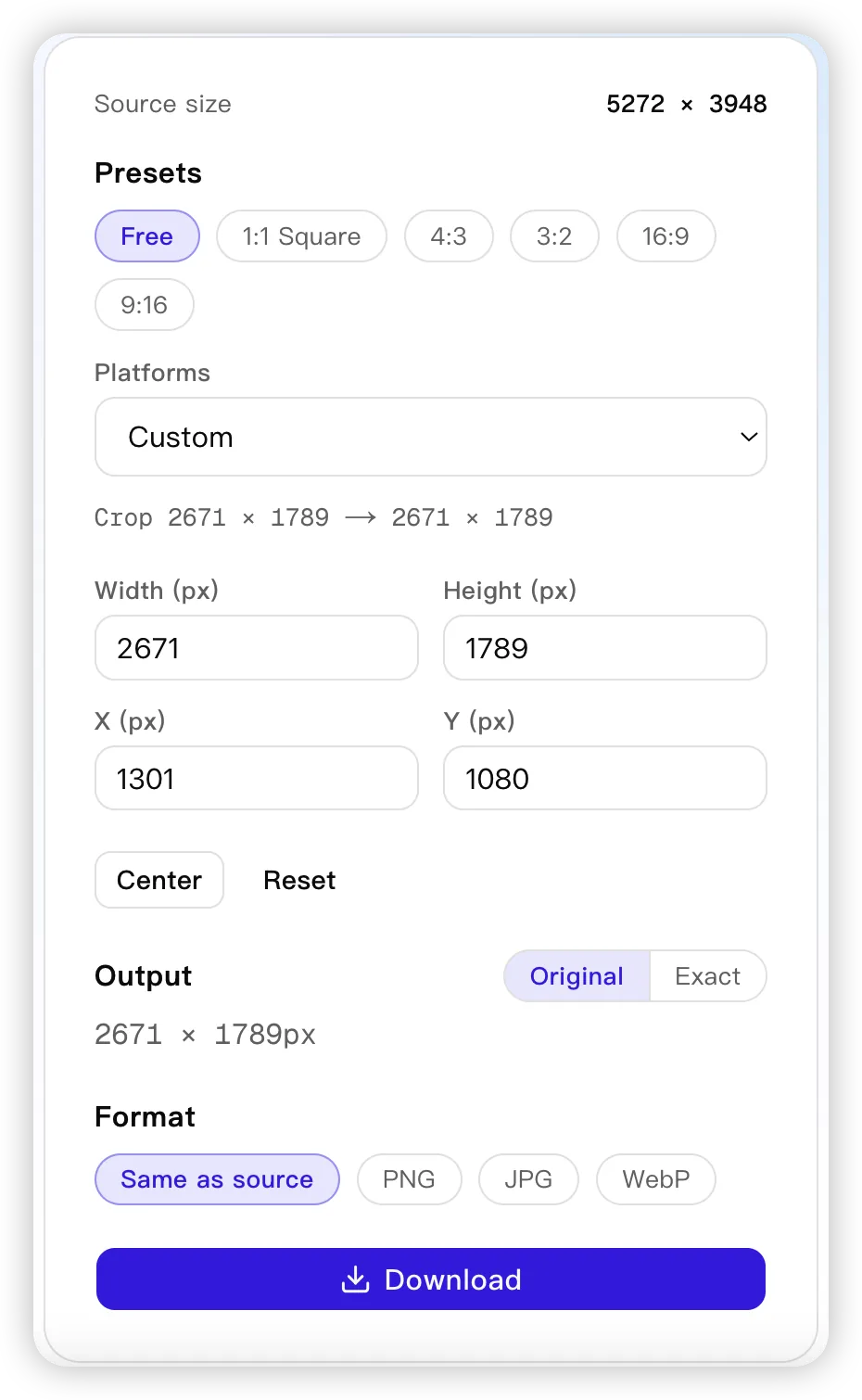
Each platform preset locks the ratio and fills in the exact output size — no manual pixel math required.
WebP vs. JPG vs. PNG: Which Export Keeps the Most Quality?
Format choice matters as much as the crop itself. Here is a real benchmark from the same client-side pipeline the tool uses: a 4000 × 3000 (4:3) JPG photo cropped with the 16:9 preset to 4000 × 2250, exported at 95% quality, measured in Chrome.
| Metric | Original 4:3 | 16:9 crop (WebP 95%) | Impact |
|---|---|---|---|
| Pixel dimensions | 4000 × 3000 px |
4000 × 2250 px |
Full width; 375 px trimmed top and bottom |
| Pixel count | 12 MP | 9 MP | 25% fewer pixels, no stretching |
| File size | 2.3 MB JPG | 1.8 MB | 20.5% smaller |
| Processing time | — | ≈1.4 s client-side | No server queue |
| EXIF / GPS | Carried by source | Stripped | Camera model and location removed |
The same crop exported as a 95% JPG was 4.3% larger than the source — re-encoding an already-compressed JPG spends bytes preserving old compression artifacts. That is why the default web recommendation is WebP. The trade-offs in practice:
| Format | Compression | Transparency | Best for |
|---|---|---|---|
| WebP | Highest — typically 25–35% smaller than JPG at equal quality | Yes | Blogs, Open Graph images, Core Web Vitals |
| JPG | High | No — transparent areas fill with white | Email attachments, legacy CMS portals, forms |
| PNG | Lossless — often larger than the source for photos | Yes | UI screenshots, logos, sharp typography |
Two rules of thumb follow from this table. First, export photos as WebP or JPG, never PNG — converting a camera photo to PNG frequently inflates it 2x–4x because lossless compression cannot approximate photographic noise. Second, reserve PNG for flat graphics and text, where lossless encoding is both smaller and sharper.
Batch Crop Dozens of Images to the Same Frame
Cropping 20 product photos one at a time is how e-commerce listings eat an afternoon. Batch mode replaces it with a queue: drop in multiple images, set one crop, and apply it everywhere.
Here is how it works in the Image Cropper:
- Load a batch — thumbnails appear along the bottom, and each image keeps its own status.
- Set the frame once — crop the active image, including rotation and flip if needed.
- Apply to All — every image in the queue gets the same crop box and orientation.
- Fine-tune exceptions — click any thumbnail to adjust just that image; the others stay put.
Batch limits follow the account tier: Free accounts load up to 3 images at a time, Plus ($12.99/month) up to 20, and Enterprise up to 50 — and no account is required to use the free tier. If a crop box falls outside a smaller image's bounds, that image is marked with a warning and skipped on export rather than silently mis-cropped.
Paid plans can download the whole batch as a single ZIP — generated entirely in the browser, with progress and cancel. Free accounts download images one by one, which keeps the free tool genuinely free and still beats repeating the same manual crop twenty times.
Try batch cropping with your own product photos. Drop in a few images, set one frame, and apply it to all — locally in your browser. Open the Free Image Cropper →
Privacy by Default: Nothing Leaves Your Browser
Every step above — decoding, cropping, rotating, exact-pixel scaling, ZIP packaging — runs on your device. There is no upload for processing, which means:
- Sensitive images stay yours. IDs, unreleased product mockups, and private photos never touch a third-party server.
- It works offline. Once the page is loaded, cropping keeps working without a connection.
- EXIF and GPS data are stripped on export. The fresh canvas output carries no camera model, timestamp, or location — useful before posting to public platforms.
Hosting is available only when you choose it: after cropping, the Image to URL option uploads the finished file and returns a fast CDN direct link for Markdown, HTML <img> tags, or Open Graph meta headers. The cropping itself stays local either way.
Frequently Asked Questions
How do I crop an image to 1200x630 for Open Graph tags?
Choose the Open Graph 1200 × 630 preset. It locks the crop to roughly 1.91:1, sets Exact pixels to 1200 × 630, and exports in one step — so social crawlers on Facebook, X, or Slack never awkwardly slice your blog header. Keep important text inside the center safe zone when you frame the crop.
Does cropping a PNG or JPG remove EXIF and GPS data automatically?
Yes. Client-side canvas cropping builds a brand-new pixel array from the visible selection and discards non-pixel metadata headers. Camera model, timestamp, and GPS coordinates are stripped automatically upon export.
Why did my cropped PNG file become larger than the original JPG?
JPG uses lossy compression tuned for continuous-tone photographs; PNG uses lossless compression that preserves every pixel value without approximation. Converting a cropped camera photo from JPG to PNG frequently increases file size by 2x to 4x. Stick to WebP or JPG for photos, and use PNG only for flat graphics, logos, or transparent backgrounds.
Can I batch crop multiple images to the same aspect ratio at once?
Yes. Load a queue of images, set the crop once, and use Apply to All to copy the same frame and orientation across the batch — then adjust individual images if needed. Free accounts handle up to 3 images at a time, Plus up to 20, and Enterprise up to 50; paid plans can also download the whole batch as one ZIP.
Does cropping reduce image quality?
Cropping itself removes pixels and does not scale the ones you keep — in Original pixels mode the remaining detail stays at the source's native density. The export then re-encodes at 95% for JPG/WebP, or lossless PNG. With Exact pixels enabled the crop is scaled to the target size with high-quality smoothing, and upscaling beyond the crop's own size can soften detail — the tool warns you when that is about to happen.
Can I rotate or flip an image while cropping?
Yes. Rotate turns the image in 90° steps to the left or right, and Flip mirrors it horizontally; the crop box is remapped to the new orientation so nothing you framed is lost. Free-angle rotation and vertical flip are not supported.
What is the difference between crop and resize?
Cropping removes pixels and changes the frame; resizing scales every pixel to new dimensions while keeping the composition. If you need smaller dimensions rather than a different frame, use the Image Resizer — or crop first and set the exact output size in the same step.
What file formats and sizes does the cropper support?
Input: PNG, JPG/JPEG, and WebP, up to 25 MB per image. Output: same as source, PNG (lossless), JPG (95%), or WebP (95%); transparent areas composite onto white when exporting to JPG.
Ready to Crop Without Losing Quality?
The whole point of browser-local cropping is that you never trade sharpness or privacy for convenience again: no upload queue, no hidden server-side compression, no EXIF metadata leaving with the file — and exact pixel sizes on the first try.
Start with your own photo right now. Open the cropper, drop in a high-res image (up to 25 MB), and toggle between WebP, JPG, and PNG exports to see the byte savings in real time. Open the Free Image Cropper →
Once your crop is ready: shrink the full frame without touching composition with the Image Resizer, turn the file into an instant CDN link with Image to URL, or squeeze it to an exact kilobyte target with the Image Compressor.
Published by the photo2url team
We build a free photo to URL converter for developers, writers, and creators. Direct image links, no ads, no clutter.
More about photo2url →Ready to convert your photos to URLs?
Start free — no signup, 15 uploads/day, links active for 180 days. Need permanent links or larger files?
Plus $12.99/month or Enterprise ~$7.50/month (billed yearly) — permanent links, larger files, unlimited uploads.