How to Copy an Image URL on iPhone
You found the right image, but Safari did not offer an obvious way to copy its address. This guide explains what to do when the image is already online, when it is stored in Photos, and when it needs to become a clickable link.
The Image Is Right There. Where Is the URL?
Imagine you are sitting in a cafe, browsing Safari on your iPhone. You find an image you want to send to a friend, add to a blog post, or use in a project. You press and hold the image. A menu appears, but there is no obvious option to copy its URL.
Pressing and holding an image can give you actions such as saving it, sharing it, or copying image data. Safari may also offer an action that opens the image by itself, depending on the website and your version of iOS. Those are related actions, but they do not all produce the same result.
Saving a photo puts a copy in your library. Copying an image places image data on the clipboard. Copying the page address gives you the URL of the webpage, not necessarily the URL of the image. A direct image URL is a web address that returns the image resource itself.
The correct method depends on where the image comes from. This guide covers images already displayed on a website, photos that live in the iPhone Photos app, and images that should open another page when tapped. When a local photo needs a public URL, the hosting workflow can be completed with Photo2URL.
First, What Kind of Image URL Do You Need?
Before copying anything, identify the role the URL needs to play. These are the three common situations:
- An image already displayed on a website. You may need the image resource URL so another page or document can load the picture directly.
- A photo stored in the iPhone Photos app. The photo is local to your device, so it needs to be hosted before it can have a public image URL.
- An image that should open another webpage. You need two addresses: one for the image itself and one for the page that should open when the image is tapped.
The terms can sound similar, so the distinction is worth making concrete:
- Image resource URL: points to the image file, so a browser or app can load the picture itself.
- Webpage URL: opens an HTML page that may contain the image plus navigation, captions, ads, or other content.
- Local image file: exists on your iPhone but is not reachable through a public web address.
- Destination URL for a clickable image: tells the browser where to go after someone taps the image.
A quick selection guide:
- Choose Safari when the image is already on a page and you can access the image resource itself.
- Choose Image to URL hosting when the image is stored on your phone and needs a public address.
- Choose HTML image linking when the picture needs to open a product page, article, profile, or another destination.
Method 1 — Copy an Image URL from Safari
Safari is the fastest route when an image is already online and the website exposes the underlying image resource. The exact actions vary, so follow what your browser actually offers rather than looking for one universal menu label.
- Open the website in Safari. Navigate to the page that displays the image.
- Press and hold the image. Wait for the action menu to appear.
- Look for a way to open the image itself. If Safari and the website make the image resource available, an action may open it in a new view or tab. The available actions depend on the site, how the image is implemented, and the iOS version.
- Inspect the address bar if only the image opens. When the new view contains the image by itself rather than all the surrounding page content, copy the address shown by Safari.
- Test the copied address in a new tab. Paste it into Safari and see what loads. The result should be the image resource, not the original article, product page, or gallery.
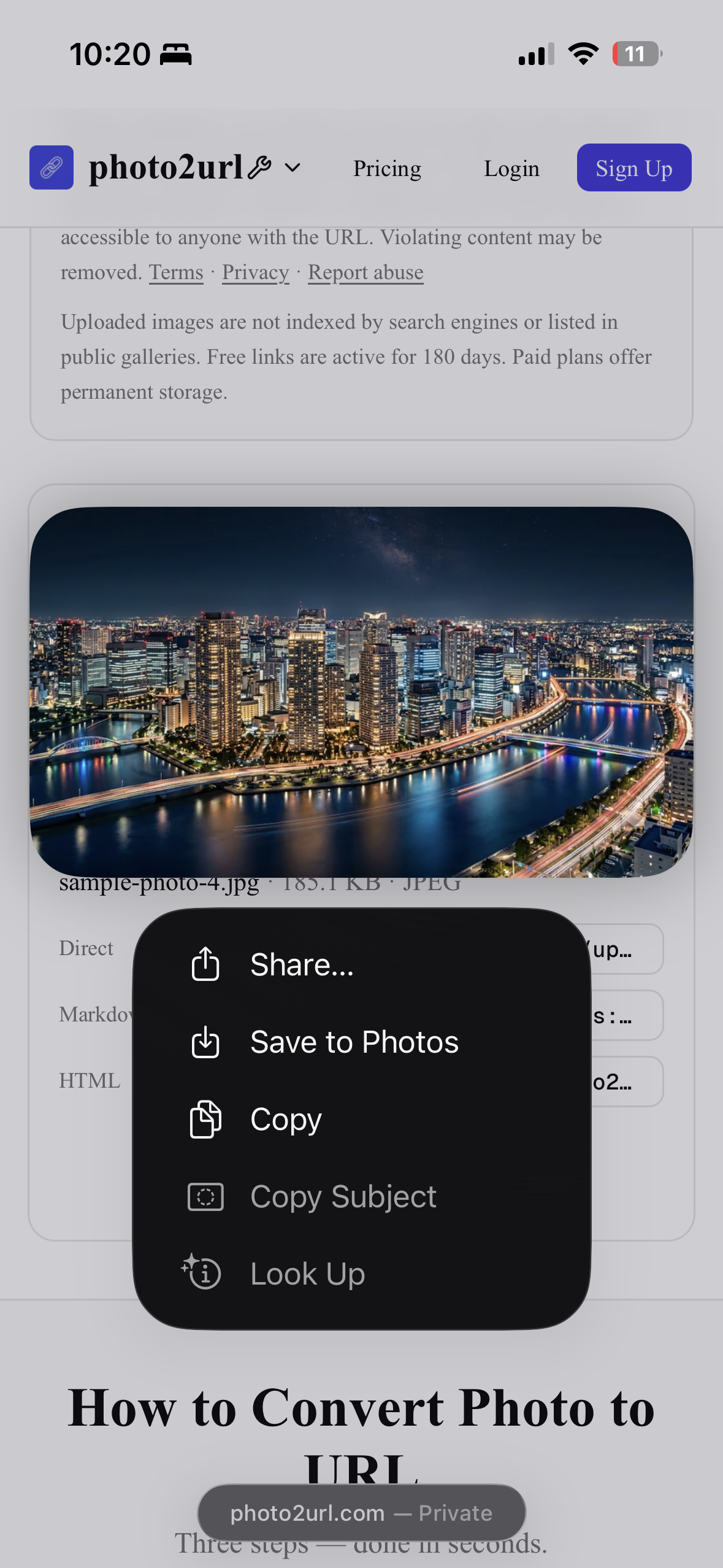
A copied webpage URL is not necessarily a direct image URL. If the address loads a page with menus, captions, or other content around the picture, keep the page URL for reading and sharing, but do not use it where an image resource URL is required.
Some websites do not expose a usable direct image address. They may load images through scripts, require a signed-in session, or deliberately keep the image behind a viewer. If you own the image or have permission to use it, move to Method 2 and create a hosted copy instead of trying to bypass the site's access controls.
Method 2 — Get a URL for a Photo in Your iPhone Photos App
Now imagine a different situation. You take a product photo on your iPhone, open Photos, select the picture, and look for a URL. There is none. The photo is stored locally on your device, and local files do not automatically have web addresses that other people can open.
To become publicly accessible, a copy of that image must be uploaded to an image-hosting service. The service stores the copy and returns a URL that points to the hosted image.
Need to host a photo from your camera roll?
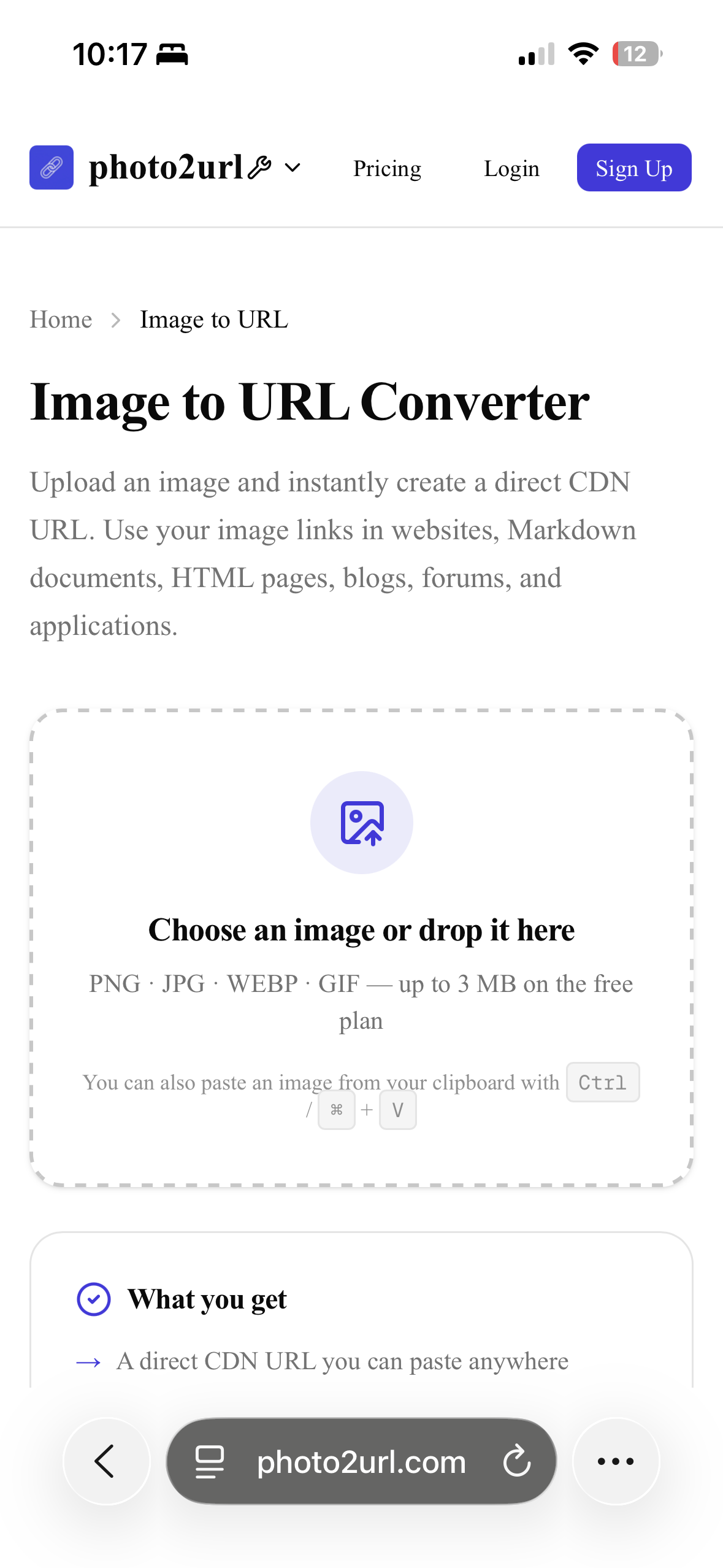
Open Photo2URL's Image to URL tool in Safari, choose the photo, and copy the direct URL returned after the upload finishes.
Convert Image to URL- Open the Image to URL tool in Safari. Use Photo2URL's Image to URL tool rather than trying to upload the photo directly from the Photos app.
- Tap the upload area. The current tool labels the main upload area "Choose an image or drop it here."
- Select the photo with the iOS photo picker. Choose the image you want to host, then confirm the selection. The picker's wording can differ between iOS versions.
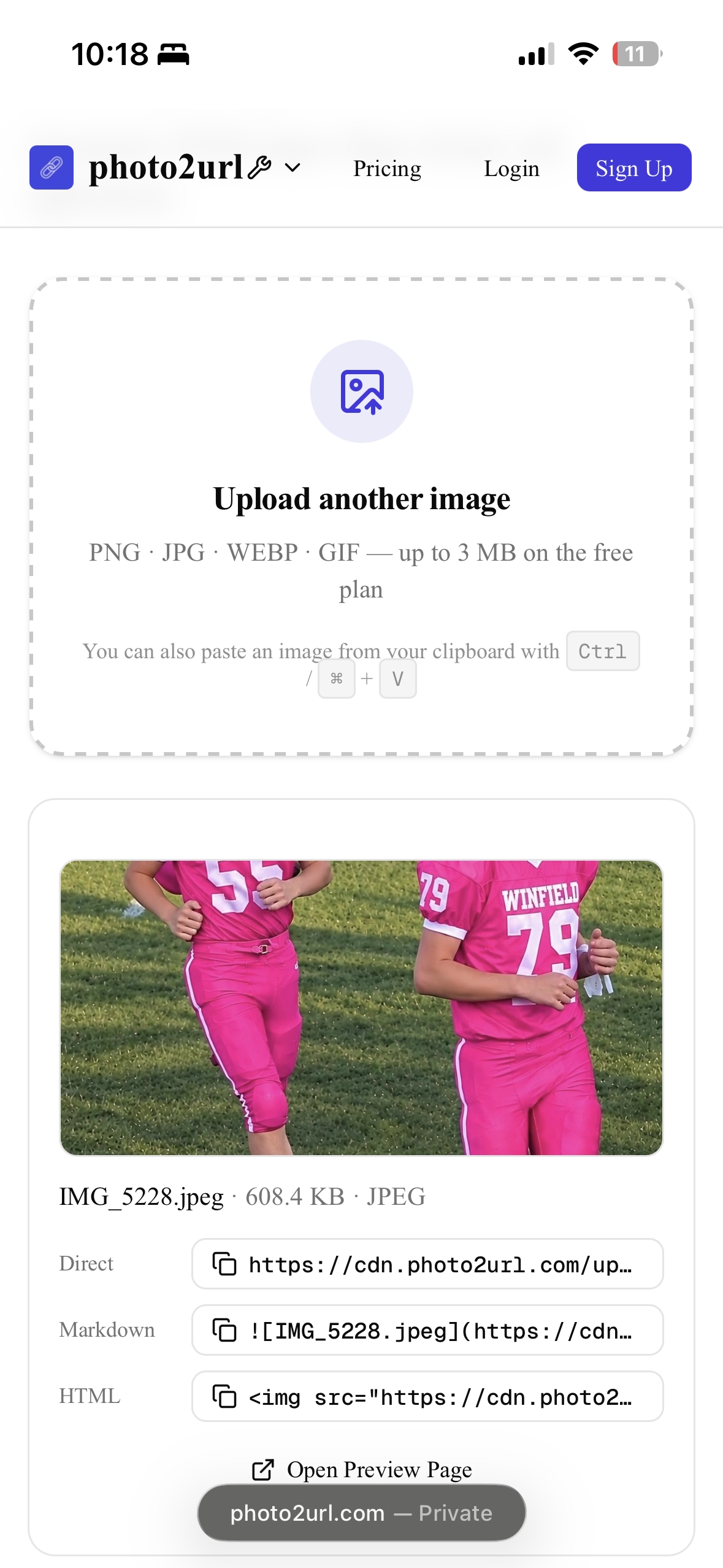
- Wait for the upload to finish. The upload begins after the file is selected. Keep Safari open until the result card appears.
- Copy the generated image URL. In the result card, copy the value labeled Direct. That is the image resource URL. The Markdown and HTML fields are ready-made snippets for places that accept those formats.
- Paste the URL into a new Safari tab. Confirm that the address opens the hosted image rather than a page with other content around it.
- Use it where an image URL is supported. Paste the address into a document, editor, or app that accepts an image URL. If the destination expects Markdown or HTML, use the matching result from the tool instead of guessing the syntax.
Privacy and availability: uploading creates a hosted copy, so the original photo and the hosted image are not necessarily the same file. Do not upload sensitive images without considering who may be able to access the link. Link availability depends on the service, plan, and current retention terms, so review those terms before relying on a URL for long-term sharing.
Method 3 — Turn an Image into a Clickable Link
A clickable image is not created from one URL alone. It needs two addresses:
- The image URL tells the browser which picture to display.
- The destination URL tells the browser which page to open when someone taps the picture.
On a webpage, HTML connects those pieces with an anchor element around an image element:
<a href="https://example.com/product">
  <img src="https://example.com/image.jpg" alt="Product photo">
</a>
In this example, href is the destination URL, src is the image resource URL, and alt describes the image for people who cannot see it or when the image fails to load.
HTML only works in a platform or editor that supports raw HTML. Pasting the same code into every social media caption, comment box, or messaging app will not necessarily produce a clickable image. Follow the destination platform's own linking options when it does not accept HTML.
Already have both URLs?
Build the anchor and image markup with the HTML Image Link Generator, then copy the result into an editor that supports HTML.
Create an HTML Image LinkHow to Check Whether Your Image URL Works
Do not wait until after publishing to discover that the URL points to the wrong resource. Run through this checklist:
- Open the URL in a new Safari tab. Start with the address exactly as you plan to use it.
- Confirm what loads. If you need an image resource URL, the tab should show the image itself rather than an article, gallery, login screen, or download page.
- Test it in the intended destination. Add the URL to a draft post, document, email, or page and preview the result before sharing it.
- Test outside your signed-in session when possible. Use private browsing or another browser that is not signed in to check whether the image depends on your account access.
A successful local test is useful, but it does not guarantee that every browser, app, network, or platform will display the image. Some services block cross-site loading, require authentication, or apply their own content and privacy rules.
Why Your Image URL May Not Work
When an image does not appear, identify whether the problem is the address itself, access to the file, or the destination platform.
| Problem | Why it happens | What to try |
|---|---|---|
| Copied webpage URL rather than image resource URL | The address opens an HTML page, so an image field or editor cannot treat it as image data. | Find the image resource URL in Safari, or upload an authorized copy to an image host and use its Direct URL. |
| Image requiring login or authentication | The server checks for an account or session before it returns the image. | Use a public or shareable copy that you own or have permission to use. Do not try to bypass access controls. |
| Expired, deleted, or restricted hosted image | The file may be gone, the link may have expired, or the host may have changed its access rules. | Open the URL directly to confirm the result, then upload the image again or replace the URL with a current link. |
| Destination platform restrictions | A social network, editor, or messaging app may block external image hosts or require its own media upload. | Check the platform's image or link instructions and upload the file there if external URLs are not supported. |
| Local image that has not been uploaded | A photo in the Photos app has no public web address on its own. | Upload a copy to an image host and use the URL returned by that service. |
Frequently Asked Questions
Can I copy an image URL directly from the Photos app on my iPhone?
No. A photo in the Photos app is stored locally on your iPhone, so it does not have a public web address to copy. To create one, upload a copy of the photo to an image-hosting service, then copy the URL it returns.
Do I need to install an app to get an image URL on iPhone?
Not necessarily. You can copy an existing image address in Safari when the website exposes one. For a local photo, you can use a browser-based image-hosting service such as Photo2URL's Image to URL tool without installing another app.
Is copying an image the same as copying its URL?
No. Copying an image usually puts image data or a local file reference on your clipboard. Copying an image URL copies the web address of an image resource. The two actions can produce different results when you paste them into an editor or app.
Can I use an image URL in a blog post?
Often you can, but the blog editor must accept an image URL and the host must permit direct access to the file. Some platforms prefer that you upload the image into their media library instead, and some block images hosted on other domains.
Will my image URL work forever?
Not automatically. A URL stops working if the file is deleted, moved, restricted, or stored behind an expiring link. Hosting plans and retention rules can differ, so check the service's current terms before relying on a link for long-term use.
Can I share any image I find online?
Not necessarily. A publicly accessible image may still be protected by copyright or licensing terms. Share or reuse it only when you own it, have permission, or the license clearly allows that use. When in doubt, link to the source page instead of republishing the image.
Final Thoughts
The right iPhone workflow depends on where the image lives and what the link should do:
- Use Safari for an image already online when the website exposes the direct image address.
- Use the Image to URL tool for a local photo that needs to be hosted and shared.
- Use the HTML Image Link Generator when an image URL and a destination URL need to become clickable HTML.
Once you know which kind of URL you need, the confusing part becomes much simpler. Test the result after pasting it, and make sure you have permission before reusing an image that belongs to someone else.
More from Photo2URL
- Image to URL — host a local image and get a direct link.
- HTML Image Link Generator — create clickable image markup.
- Photo2URL — explore the broader image workflow.