How to Get an Image URL: A Simple Guide to Sharing and Hosting Images
To get an image URL, upload the image to a hosting service that provides a direct link, copy that link, and paste it wherever you want the image to appear. I am not a programmer, and I wanted that process to stay simple.
I Just Wanted to Share a Picture
Sometimes, I want to share an image with someone. Using a cloud storage service seems like the obvious solution, but it can come with its own problems.
The other person might need to sign in, or they might not have permission to view the file. All I wanted was to let someone see a picture. Instead, I found myself dealing with access permissions and sharing settings.
I started wondering if there was a simpler way to share an image, something that would let people open a direct image URL without going through all those extra steps.
When My Notes and Projects Started Getting Too Big
Another problem came from the way I use Obsidian. I often take screenshots and add them to my notes. It is convenient to have everything in one place, especially when I am collecting information or organizing ideas.
But as the number of images grew, my notes and local repository became larger and larger. This became particularly noticeable when I uploaded my Obsidian vault to GitHub or used my materials to build websites. Images that seemed small individually could add up, making the entire repository heavier and more cumbersome to manage.
I did not want every image to live inside my local notes or website project. I wanted my notes and websites to stay lightweight without having to carry around all those image files. That is when I started thinking about a different approach.
What if I could store images separately and simply use their URLs wherever I needed them? Instead of putting an image file directly into every project, I could keep the image in one place and reference it through a link. My notes and web pages could display the image without needing to store another copy of the file in the project itself.
For someone like me, who is not a programmer, that sounded like a much simpler way to manage images.
Sharing Travel Photos Without Losing Their Quality
There was another situation I kept running into in everyday life. When I go on a short trip, I often want to share photos with other people. Sending pictures through a mobile messaging app is convenient, but images can be compressed, and their quality may suffer.
Sometimes, I simply want my friends to see the original photos clearly rather than a compressed version. I wanted a way to share a photo that was easy for others to open while preserving the image quality as much as possible.
A direct image URL seemed like a practical solution. Instead of sending the image through a messaging app, I could share a link that people could open to view the image.
Of course, the image still needs to be hosted somewhere that allows direct access, and the link needs to remain available. Depending on the host, an image may also be processed or compressed, so a direct URL by itself does not guarantee the original quality. But the idea itself was simple: make sharing an image as easy as sharing a link.
Why I Started Using Photo2URL
These experiences all came from different parts of my life. Sometimes I wanted to share a picture without asking someone to sign in. Sometimes I wanted to keep my Obsidian vault and GitHub repository from becoming unnecessarily large. And sometimes I just wanted to share travel photos without losing their clarity.
Eventually, I realized that I was looking for the same thing in all these situations: a simple way to store an image separately and get a direct image URL that I could use wherever I needed it. That is why I found Photo2URL so useful.
It gives me a way to upload an image and get a link that I can use in my notes, on my website, or when sharing images with others. I do not have to think of myself as a programmer to understand the basic idea. I just need a place to put my image and a link I can copy and use.
How to Get an Image URL
The basic process is straightforward:
- Choose the image you want to share or use.
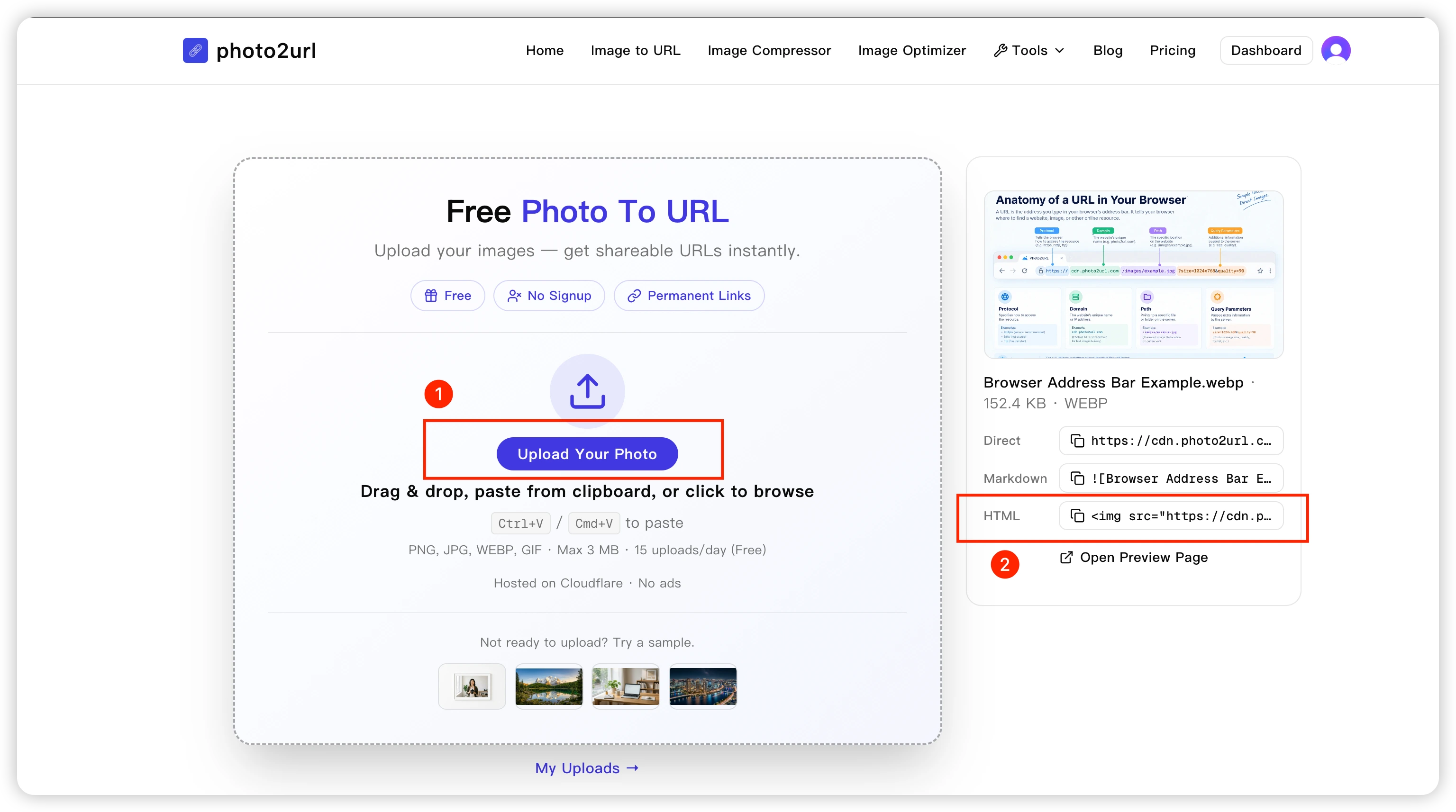
- Upload it to an image hosting service that provides direct image URLs. With the Photo2URL upload tool, you can click the upload area, drag and drop a file, or paste an image from your clipboard.
- Copy the generated image URL. Photo2URL shows separate Direct, Markdown, and HTML results, each with its own copy button. For the image URL itself, copy the Direct result.
- Paste the link wherever you want to display or share the image. You can use the Markdown or HTML result if the destination expects that format.
The important thing is to use the direct image URL rather than a link to a webpage that merely contains the image. The direct link returns the image itself, so another app or document can display it correctly.
Using an Image URL in Obsidian and Markdown
One of the reasons I wanted image URLs in the first place was to keep my notes lightweight. In Markdown, an image can be referenced using a simple syntax:
Replace YOUR_IMAGE_URL with the actual direct URL of your hosted image. This allows your Markdown document to reference an image stored elsewhere rather than requiring the image file to be stored inside the same project.
The same general idea works when adding images to web pages using HTML:
<img src="YOUR_IMAGE_URL" alt="A description of the image">The URL points to the hosted image, while the document or webpage simply references it. Keep in mind that the image host must allow access to the image, and the URL must remain valid for the image to continue displaying. For a closer look at direct links, see what an image URL is.
Frequently Asked Questions
How do I get an image URL from a picture?
Upload the picture to an image hosting service that provides direct image URLs, then copy the generated link. With Photo2URL, you can click the upload area, drag and drop a file, or paste an image from your clipboard.
Can I use an image URL in Obsidian and Markdown?
Yes. Markdown image syntax uses an exclamation mark, alt text in square brackets, and the image URL in parentheses. Obsidian and other Markdown apps can display the image when the link points to a valid image and the host allows direct access.
How do I use an image URL in HTML?
Place the direct image URL in the src attribute of an HTML img element. Add descriptive alt text so the image can be understood when it cannot be displayed.
Do I need programming experience to get an image URL?
No. The basic process is to choose an image, upload it, copy the generated link, and paste it where you need it. Photo2URL also provides ready-to-copy Markdown and HTML versions of the result.
Why might an image URL stop working?
The image host or storage service must allow direct access, and the link must remain available. An image may stop displaying if it is moved or deleted, a temporary link expires, or access requires a sign-in.
A Small Change That Makes Image Sharing Easier
I originally started looking for a simpler way to share images and manage my own notes. I was not trying to build something complicated. I just wanted to avoid unnecessary file sizes, confusing sharing permissions, and the frustration of not being able to share an image the way I wanted.
For me, using direct image URLs became a practical way to keep things organized and make images easier to use across different places. If you have run into similar problems with screenshots, notes, websites, or sharing photos, getting a direct image URL may be a useful solution for you, too.
To learn more about the product, visit Photo2URL. If you are ready to create a direct URL, go directly to the image-to-URL tool to upload an image.
Ready to get an image URL?
Upload or paste an image and Photo2URL will return a direct URL with copy-ready Markdown and HTML.