How to Embed Images in HTML
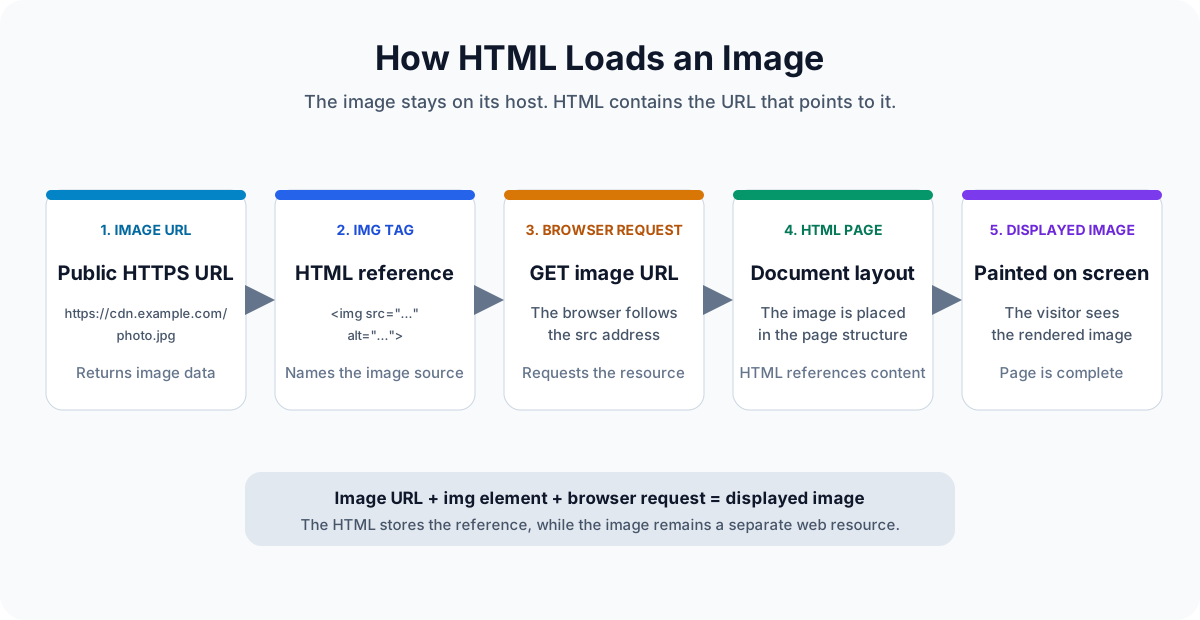
I have had this happen more than once: an image looks fine in a folder or image viewer, but the web page shows a broken-image placeholder. The HTML is often doing exactly what it was written to do. The problem is that the src value does not point to a resource the browser can load. HTML does not store the picture itself, it references an image through a URL. An image file, an image URL, and an HTML page are related, but they are not the same thing.
What Is the HTML img Tag?
The img element embeds an image in an HTML document. Its basic form has two attributes:
<img src="image-url" alt="description">src: the location of the image resource. The value can be an absolute image URL such ashttps://example.com/image.jpgor a path that the browser can resolve from the HTML document.alt: a short text description of the image. It can appear when the image cannot load, and assistive technology may use it to describe the image to someone who cannot see it. A useful description such asalt="Red running shoe"is more helpful thanalt="shoe.jpg".
When the browser parses the HTML, it finds the img element and reads its src. That creates a request for the image resource. After the response arrives, the browser decodes the image data and paints it into the page. The HTML document and the image are separate resources connected by the URL.
If the image is purely decorative and adds no information, an empty alt="" can tell assistive technology to ignore it. Content images that carry meaning should have a useful alternative description. For more background on how direct resources work, see what an image URL is.
How to Embed an Image Using an Image URL
A complete HTML page only needs the document structure and an img element with a working image URL:
<!DOCTYPE html>
<html>
<body>

  <h1>My Image</h1>

  <img
    src="https://example.com/image.jpg"
    alt="Example image"
  >

</body>
</html>
The browser does not copy the picture into the HTML file. The sequence is:
- The browser loads the HTML page.
- It reads the URL in the
srcattribute. - The browser requests that URL from the image host.
- The response is decoded and the image appears in the page.
The URL must return image data. A URL that returns an HTML gallery, a product page, or a sign-in screen is not an image resource, even if a person can see the picture somewhere on that page. This difference is covered in more detail in the guide to creating an image URL for a website.
Image URL vs Local Image Path
A short path can be valid in HTML when the image is part of the same deployed site:
<img src="photo.jpg" alt="Project screenshot">That relative path asks the browser to look for photo.jpg from the current document location. It works only when the file is served from the same environment and the path is correct. It does not refer to an arbitrary file on your computer, and it usually stops working when the HTML is moved somewhere that does not contain the image.
A local filesystem path such as /Users/you/Pictures/photo.jpg or C:\Images\photo.jpg has the same limitation. Other visitors do not have your computer's folders. For an image that needs to work across a website, upload it to a public host and use a complete HTTPS URL:
<img
  src="https://example.com/photo.jpg"
  alt="Project screenshot"
>
Public image URLs are useful because the address can be requested by a browser, a content management system, a build process, or a reader on another network. The host still needs to keep the file available, and the URL should not require a visitor to sign in.
How to Make a Clickable Image in HTML
A regular image displays content. A clickable image also needs a destination URL. Wrap the img element in an a element:
<a href="https://example.com">
  <img
    src="https://example.com/image.jpg"
    alt="Example image"
  >
</a>
The href attribute on the anchor is where the browser goes after a click. The src attribute on the image is the picture that is displayed. They can point to different resources, and reversing them is a common cause of a link that opens the wrong page or displays nothing useful.
If the image is the only content inside the link, its alt text usually becomes the link's accessible name. Keep the description focused on the image and use the surrounding context to explain where the link leads.
Need clickable image markup?
Combine an image URL and a destination URL into accessible HTML without assembling the nested elements by hand.
Common HTML Image Problems
- The image does not display: open the
srcURL directly in a browser. If it does not return the image, the problem is with the address or the host rather than the layout of the HTML. - An incorrect image URL: a webpage URL is not the same as the direct address of the image resource. Copy the URL that opens the image itself, without a gallery or article around it.
- A broken file path: check spelling, capitalization, folders, leading slashes, and URL encoding. Relative paths are resolved from the HTML document location, not from the folder you happen to have open on your computer.
- A private image that requires a login: an
imgrequest does not automatically use a visitor's session with another site. Use a public asset when it can be shared, or build an authenticated application flow for private media. - HTTP and HTTPS issues: a page served over HTTPS may not be allowed to load an insecure HTTP image in some browsers. Prefer an HTTPS image URL for a modern website and update old links when the host supports HTTPS.
- Image size problems: a very large file can slow a page, and an image without dimensions or responsive styling can overflow its container. Resize and compress the source image, then constrain its display with CSS such as
max-width: 100%; height: auto;.
A practical test is to open the image URL in a private browser window and load the HTML in a narrow viewport. The image should appear by itself at the URL, remain accessible without that login, and stay inside the page layout at smaller sizes.
Using Photo2URL for HTML Images
If the picture is still on your computer, you need a public image URL before HTML can load it in another environment. Photo2URL turns that local file into a direct HTTPS URL that can be placed in an img element. The workflow is:
- Start with the image file.
- Upload the image.
- Generate the public image URL.
- Copy the HTTPS URL and use it inside the
srcattribute.
The underlying HTML remains standard, so you can keep using the same img and alt pattern. If you need many generated images or want to automate the upload step, the Photo2URL developer API is the programmatic option.
Need an image URL for HTML?
Upload an image and copy a direct URL that is ready for an HTML image element.
Frequently Asked Questions
These are the practical questions to check when an image element does not behave as expected.
Frequently Asked Questions
How do I embed an image in HTML?
Use an img element with a src attribute that points to the image URL, such as <img src="https://example.com/image.jpg" alt="Example image">. The browser requests that URL and displays the returned image.
What does src mean in an HTML image tag?
src stands for source. For an img element, it is the URL of the image resource that the browser should request. It can be an absolute URL or a path that resolves correctly from the HTML page.
Why is my HTML image not showing?
Check whether the src value returns the image directly, the path is correct, the file is public, and the browser can load it over the same security context as the page. A webpage URL, login-protected file, deleted image, or expiring link will not work as a stable image source.
Can I use an image URL in HTML?
Yes. The src attribute is designed to accept an image URL. Put the direct URL in the src attribute and add useful alt text so the image remains understandable when it cannot load.
How do I make an image clickable in HTML?
Wrap the img element in an anchor element. The img src points to the displayed image, and the anchor href points to the destination that should open when the image is clicked.