How to Compress Images to an Exact File Size (50KB, 100KB, 200KB) Without Losing Quality or Uploading
Learn how to compress JPG, PNG, and WebP images to an exact KB target like 50KB or 100KB directly in your browser—with local desktop processing, target-size quality search, and instant ZIP export.

If you have ever tried to upload a passport photo to a government portal, submit a resume headshot, or list a product on an e-commerce marketplace, you know the frustration of strict file size limits. The form doesn't ask for "a smaller file"—it demands under 50 KB or under 100 KB.
Most online image compressors force you into two bad compromises:
- Guesswork with quality sliders: You drag a slider to
65%, download the file, check the properties, realize it is114 KB, and repeat the cycle five times until the image looks blurry. - Privacy risk from cloud uploads: Every time you drop a personal ID scan, contract page, or unreleased product mockup into a traditional web compressor, that file is uploaded to a third-party server.
With the Photo2URL Image Compressor, you can hit an exact kilobyte target—such as 50 KB, 100 KB, or 200 KB—in a single click, with desktop compression running locally inside your browser.
Quality Mode vs. Target File Size Mode: Why Standard Compressors Miss the Mark
Traditional compression tools rely on Fixed Quality Mode. You pick a percentage (for example, 80%), and the encoder applies that same quantization table regardless of how complex the image is.
The problem is that visual complexity dictates file size:
- A minimalist graphic with solid white backgrounds compressed at
80%might weigh 28 KB. - A high-resolution outdoor portrait compressed at the exact same
80%setting might still weigh 420 KB.
How Target-Size Quality Search Solves This
Instead of guessing a percentage, Target File Size Mode flips the workflow around. You declare the maximum allowed size (say, 100 KB), and the compressor tries a fixed ladder of quality levels in order—starting from the highest quality and stepping down until the encoded file fits:
- It encodes a candidate at the top of the quality ladder and measures the resulting byte size.
- If the output exceeds
100 KB, it tries the next lower quality step and measures again. It keeps the smallest real candidate it has produced. - The first candidate that fits is returned as the highest quality step in that ladder under your KB ceiling. If quality alone cannot reach the target, it tries progressively smaller dimensions when Automatic Resizing is enabled.
This runs locally in browser memory, usually within a few encoding passes, and your image dimensions stay unchanged unless you opt into automatic resizing.
When You Should Also Resize Dimensions
There is a physical limit to how much data can be packed into a tiny file without visible artifacts. If you try to squeeze a 4000 × 3000 DSLR photograph down to 20 KB while keeping all 12 million pixels intact, every encoder will produce heavy blockiness.
- If you want the compressor to automatically scale down oversized dimensions when quality alone cannot hit an extreme KB limit, keep Automatic Resizing enabled.
- If a portal requires exact pixel dimensions first (such as
600 × 600 px), adjust the dimensions using the Photo2URL Image Resizer before compressing to your target KB limit.
Step-by-Step: How to Compress Images to 50KB, 100KB, or 200KB Locally
You don't need to install desktop software or create an account. Here is the exact workflow using Photo2URL's browser-based Image Compressor:
Step 1: Load Your Images (Desktop Batch or Mobile QR Transfer)
- On Desktop: Drag and drop up to 12 images at once (up to 25 MB per file, 100 MB total) directly into the workspace.
- From Your Phone: Need to compress a photo currently sitting in your iPhone or Android camera roll? Click the QR Code mobile transfer option, scan the code with your phone, and send the image straight to your desktop browser. (Note: Desktop compression runs in your browser; when you opt into cross-device QR transfer, files pass through an encrypted temporary relay that expires after 15 minutes. See the privacy notes below.)
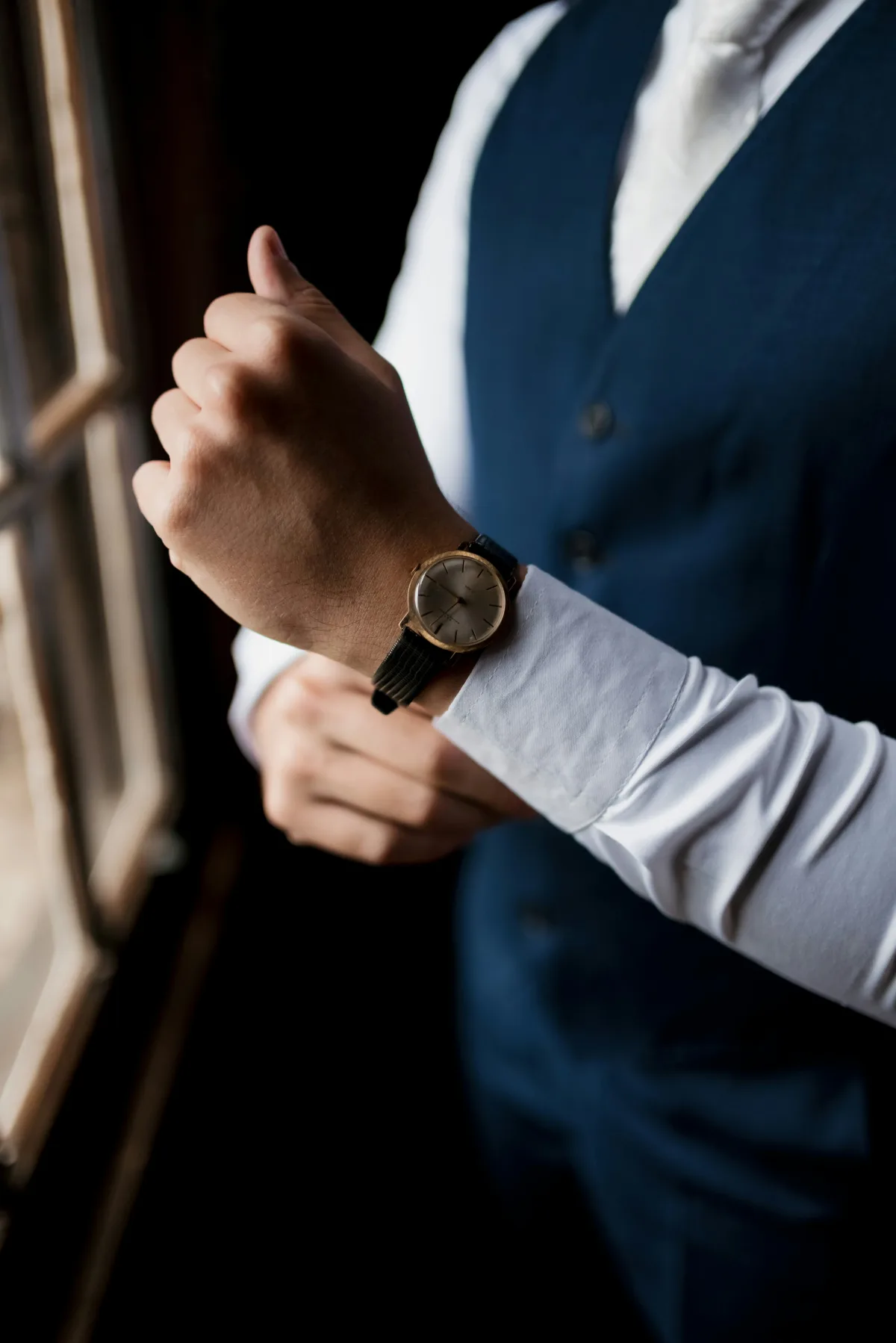
Sample portrait ready for target-size compression in the browser.
Step 2: Choose the Right Output Format (JPG vs. WebP vs. PNG)
Choosing the right codec makes hitting strict KB limits dramatically easier:
| Output Format | Best For | Transparency Support | Compression Efficiency |
|---|---|---|---|
| JPG | Government portals, resumes, legacy forms, photographs | No (transparent areas automatically fill with a clean white background instead of black) | High |
| WebP | Websites, blogs, landing pages, Core Web Vitals | Yes (preserves full alpha channel) | Highest (25%–35% smaller than JPG at equal quality) |
| PNG | UI icons, crisp text screenshots, lossless graphics | Yes (preserves full alpha channel) | Moderate (lossless) |
Step 3: Pick a Target Preset or Enter a Custom KB Limit
Select one of the quick-action presets—50 KB, 100 KB, or 200 KB—or type a custom number into the target size field (up to 100 MB). Click compress, inspect the before-and-after byte savings on each card, and download your files individually or bundled together in a single ZIP archive.
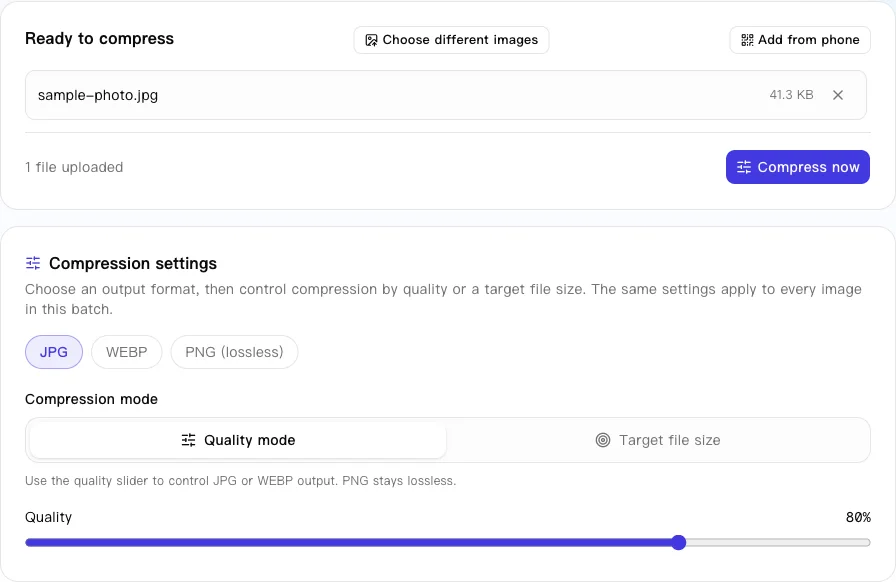
The Image Compressor after selecting a JPEG; choose Target file size in the same workspace for an exact KB ceiling, then export a ZIP when needed.
Real-World Benchmark & Why "Compressed" Files Sometimes Grow Larger
In real-world testing—such as optimizing a 1024 × 687 web hero image—switching to WebP or targeting a 100 KB budget often cuts payload weight by 60% to 85% while keeping text and edges crisp for web and form submissions. Results vary with the source image and format.
However, you may occasionally drop an already-optimized .webp or .jpg into a compressor and see the output file size increase rather than shrink. Here is why that happens:
- Double-Compression Overhead: When a browser decodes an existing compressed image onto an HTML5
<canvas>, it expands the file into raw uncompressed pixels. Re-encoding those raw pixels at a higher quality setting than the original file forces the encoder to spend extra bytes preserving old compression artifacts. - Format Switching: Converting a tightly compressed WebP into a PNG or high-quality JPG naturally expands the byte footprint.
Unlike tools that hide this or silently serve a bloated file, the Photo2URL Image Compressor transparently flags whenever an output file is larger than the source—so you can immediately switch the output format to WebP, lower your target KB ceiling, or enable automatic resizing.
Built for Privacy: How Local Browser Compression Works
When you compress files you added on your computer using Photo2URL Image Compressor, the desktop flow decodes, resizes, and re-encodes them in your browser's local memory. Those files are not uploaded for compression. The optional QR phone transfer is different: it uses a temporary encrypted relay that expires after 15 minutes so the desktop browser can receive the photo.
| Feature | Traditional Cloud Compressors | Photo2URL Local Image Compressor |
|---|---|---|
| File Privacy | Uploaded to external servers | Local for desktop files; optional QR transfer uses a temporary encrypted relay |
| Processing Speed | Limited by upload & download bandwidth | Fast (runs at local CPU speed) |
| Offline Capability | Requires active connection per file | Works offline once the page is loaded (desktop flow) |
| Exact KB Targeting | Usually locked behind paid plans or unavailable | Built-in presets (50KB / 100KB / 200KB) + custom KB |
Next Steps in Your Image Workflow
Once your images are compressed to the exact size you need:
- Need a shareable link or Markdown/HTML embed? Upload your optimized image to Photo2URL Image to URL to generate a fast, global CDN direct link in seconds.
- Working with iPhone photos? Convert
.heicfiles into browser-ready formats first with Photo2URL HEIC to JPG.
Frequently Asked Questions (FAQ)
Does compressing an image to 100KB change its pixel dimensions?
No—by default, target size compression preserves your original width and height while searching the quality ladder. Pixel dimensions only change if you enable Automatic Resizing to meet an ultra-small KB target without severe visual artifacts.
Why did my transparent PNG get a white background after converting to JPG?
The JPEG standard does not support transparency (alpha channels). Instead of turning transparent areas solid black like default browser canvas exports do, Photo2URL automatically composites transparent pixels onto a clean white background (#FFFFFF) so logos and product cutouts remain usable.
Is it safe to compress passport photos, IDs, or confidential documents?
For files you add on your computer, compression runs in local browser memory and does not upload the file for processing. The optional QR phone transfer uses a temporary encrypted relay that expires after 15 minutes; avoid that flow for confidential documents. As with any online tool, review the privacy policy before handling sensitive IDs, and only share the resulting file through a channel you trust.
Published by the photo2url team
We build a free photo to URL converter for developers, writers, and creators. Direct image links, no ads, no clutter.
More about photo2url →Ready to convert your photos to URLs?
Start free — no signup, 15 uploads/day, links active for 180 days. Need permanent links or larger files?
Plus $12.99/month or Enterprise ~$7.50/month (billed yearly) — permanent links, larger files, unlimited uploads.